Google Search Console Integration
Connect Google Search Console (GSC) to RankGood to see your real search performance data alongside third-party SEO metrics. GSC provides first-party data directly from Google about how your site appears in search results.
Written By Alex Frees
Last updated 7 months ago
What Data You Get
Once connected, you can access:
This data appears in the SEO Intelligence dashboard and Strategy Hub analysis.
Connecting Google Search Console
Navigate to Settings > Integrations.
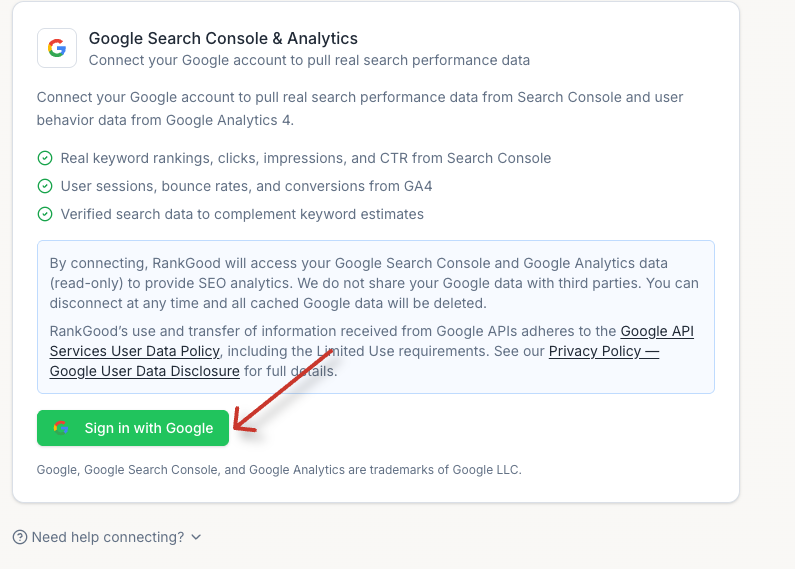
Find Google Search Console and click Connect.
You will be redirected to Google's OAuth consent screen.
Sign in with the Google account that has access to your Search Console properties.
Grant RankGood permission to view your Search Console data.
You will be redirected back to RankGood.
Screenshot: The Google Search Console integration card showing the Connect button and OAuth consent flow.
Selecting a Property
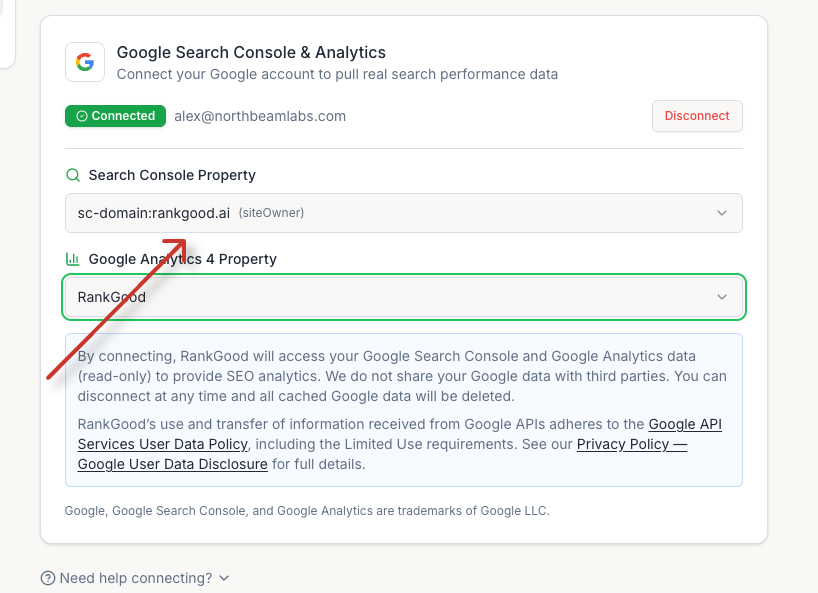
After connecting, you need to select which Search Console property to use:
RankGood will show a list of your Search Console properties.
Select the property that matches your product's website.
Click Confirm.
Screenshot: The property selection dropdown showing available Search Console properties.
Viewing Search Console Data
Once connected, GSC data appears in several places:
SEO Intelligence Dashboard — Search performance metrics are displayed alongside third-party data
Keyword Tracking — GSC clicks, impressions, and positions for your tracked keywords
Strategy Hub — GSC data feeds into the Search Performance analysis module
Navigate to SEO Intelligence > Keywords and look for the GSC tab or column to see first-party Google data alongside DataForSEO metrics.
Disconnecting
To disconnect Google Search Console:
Go to Settings > Integrations.
Click Disconnect on the Google Search Console card.
Confirm the disconnection.
Your previously imported GSC data remains in RankGood. New data will no longer be fetched.
Troubleshooting
I don't see my property after connecting:
Make sure you signed in with the Google account that owns the Search Console property.
Verify that the property is verified in Google Search Console.
Note: Google Search Console and GA4 are under one authentication. You must ensure that the same user has access to BOTH the GA4 property and Search Console property that you want to connect.
Data seems stale:
GSC data in Google itself can have a 2–3 day delay. RankGood reflects this same delay.
Permission errors:
Try disconnecting and reconnecting with the correct Google account.
Related Articles:
Still need help? Ask the team