Slack Integration
Connect Slack to receive RankGood notifications and alerts directly in your Slack workspace. Stay informed about scan completions, new opportunities, and important updates without checking the RankGood dashboard.
Written By Alex Frees
Last updated 7 months ago
What You Get
Slack notifications can include:
Scan completion alerts (Opportunity Radar, AI Visibility, SEO scans)
New opportunities discovered
Posting status updates
Approval requests (for agency users)
System alerts and important updates
Setting Up Slack
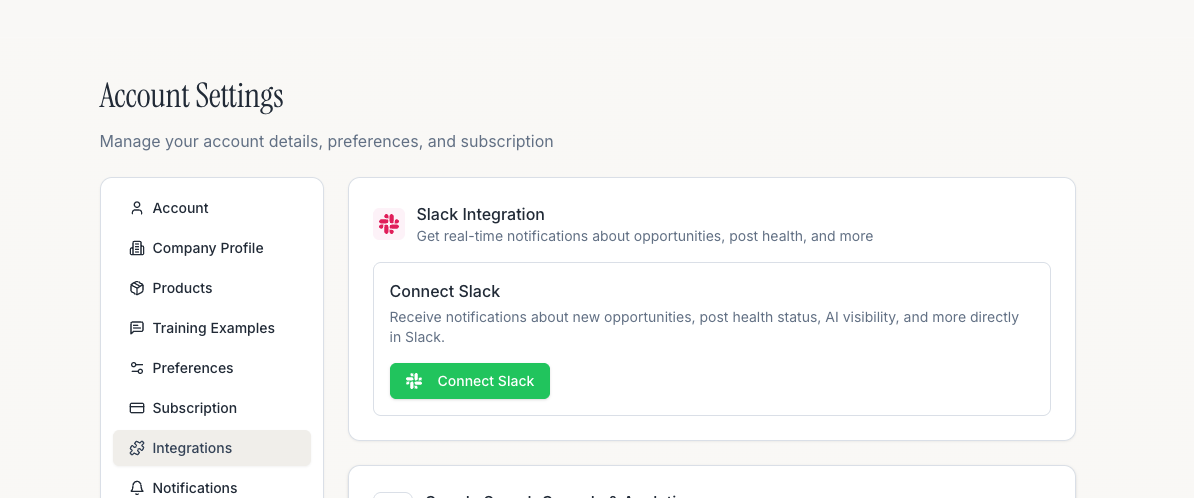
Navigate to Settings > Integrations.
Find Slack and click Connect.
You will be redirected to Slack's OAuth page.
Select the Slack workspace you want to connect.
Choose the channel where RankGood should post notifications.
Click Allow.
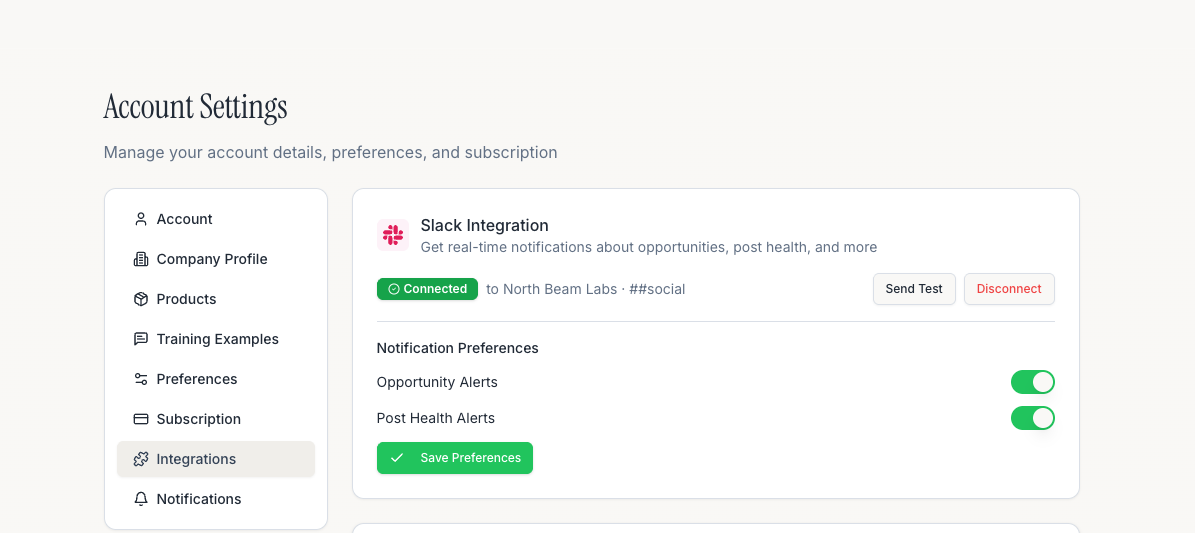
Screenshot: The Slack integration card showing connection status and the selected channel.
Configuring Notifications
After connecting, configure which events send Slack notifications:
Go to Settings > Integrations > Slack.
Click Notification Settings.
Toggle notifications for each event type on or off.
Click Save.
Testing the Connection
To verify your Slack integration is working:
Click Send Test Message.
A test notification will be sent to your configured Slack channel.
Verify you see the message in Slack.
Disconnecting
Go to Settings > Integrations.
Click Disconnect on the Slack card.
Confirm.
Related Articles:
Still need help? Ask the team