Notification Settings
Configure how and when RankGood sends you notifications. You can control in-app notifications, email notifications, and Slack alerts independently.
Written By Alex Frees
Last updated 7 months ago
Accessing Notification Settings
Navigate to Settings > Notifications (or click the gear icon in the notification panel).
Screenshot: The notification settings page showing toggles for different notification types and channels.
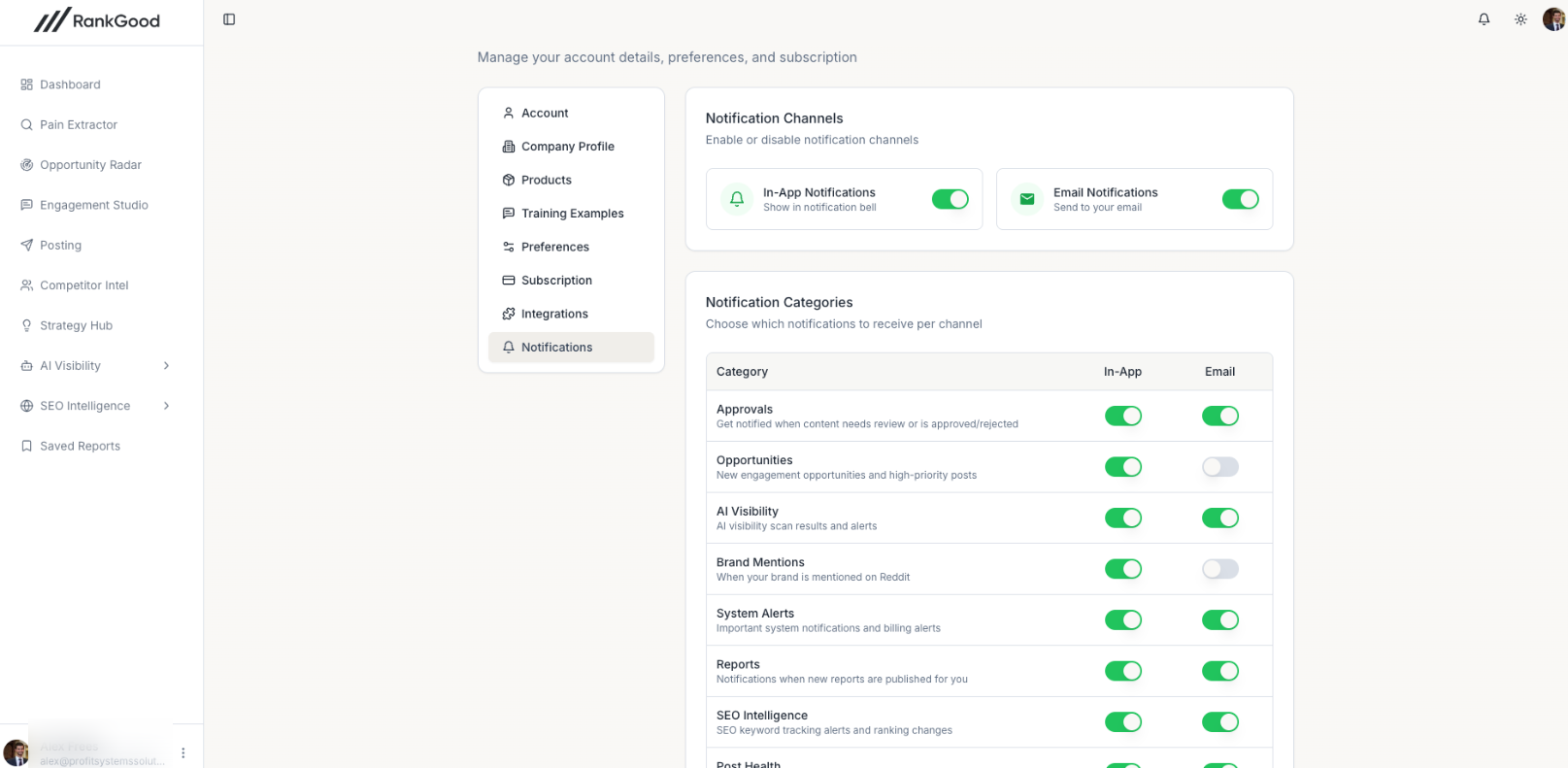
Notification Types
Notification Channels
For each notification type, you can choose which channels to receive it on:
Managing In-App Notifications
Viewing Notifications
Click the notification bell icon in the top navigation to see recent notifications. Each notification shows:
Event description
Timestamp
Read/unread status
Marking as Read
Click on a notification to mark it as read and navigate to the relevant feature.
Click Mark All as Read to clear all unread indicators.
Deleting Notifications
Click the delete icon on any notification to remove it.
Notification Page
For a full view of all notifications, navigate to Notifications from the sidebar. This page shows a complete, filterable list of all your notifications with richer detail.
Related Articles:
Still need help? Ask the team