Google Analytics Integration
Connect Google Analytics 4 (GA4) to RankGood to see traffic, user behavior, and conversion data alongside your SEO and social intelligence metrics. This also allows you to integrate GA4 and Google Search Console Data into Strategy Hub.
Written By Alex Frees
Last updated 7 months ago
What Data You Get
Connecting Google Analytics
Navigate to Settings > Integrations.
Find Google Analytics and click Connect.
Sign in with the Google account that has access to your GA4 properties.
Grant RankGood permission to view your Analytics data.
Select your GA4 property from the list.
Click Confirm.
Screenshot: The Google Analytics integration card with Connect button and property selection dropdown.
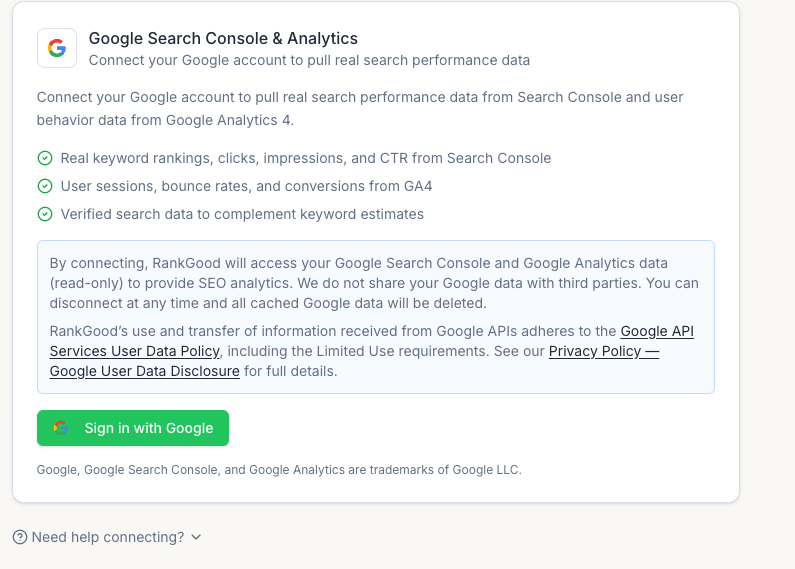
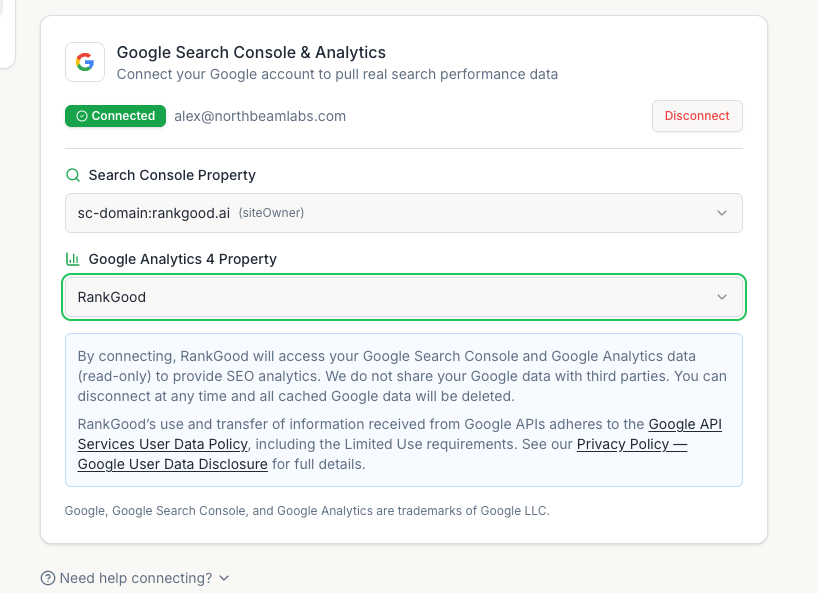
The same Google OAuth connection used for Search Console can also grant Analytics access — you may only need to authenticate once.
Viewing Analytics Data
GA4 data enhances several features:
Strategy Hub — Traffic data feeds into the Search Performance and Social Intelligence analysis modules
SEO Intelligence — Organic traffic data complements keyword ranking metrics
Dashboard — Traffic summaries can appear on your main dashboard
Disconnecting
Go to Settings > Integrations.
Click Disconnect on the Google Analytics card.
Confirm.
Related Articles:
Still need help? Ask the team