Account Settings
The Settings page is your central hub for managing your account, products, subscription, integrations, and preferences.
Written By Alex Frees
Last updated 7 months ago
Accessing Settings
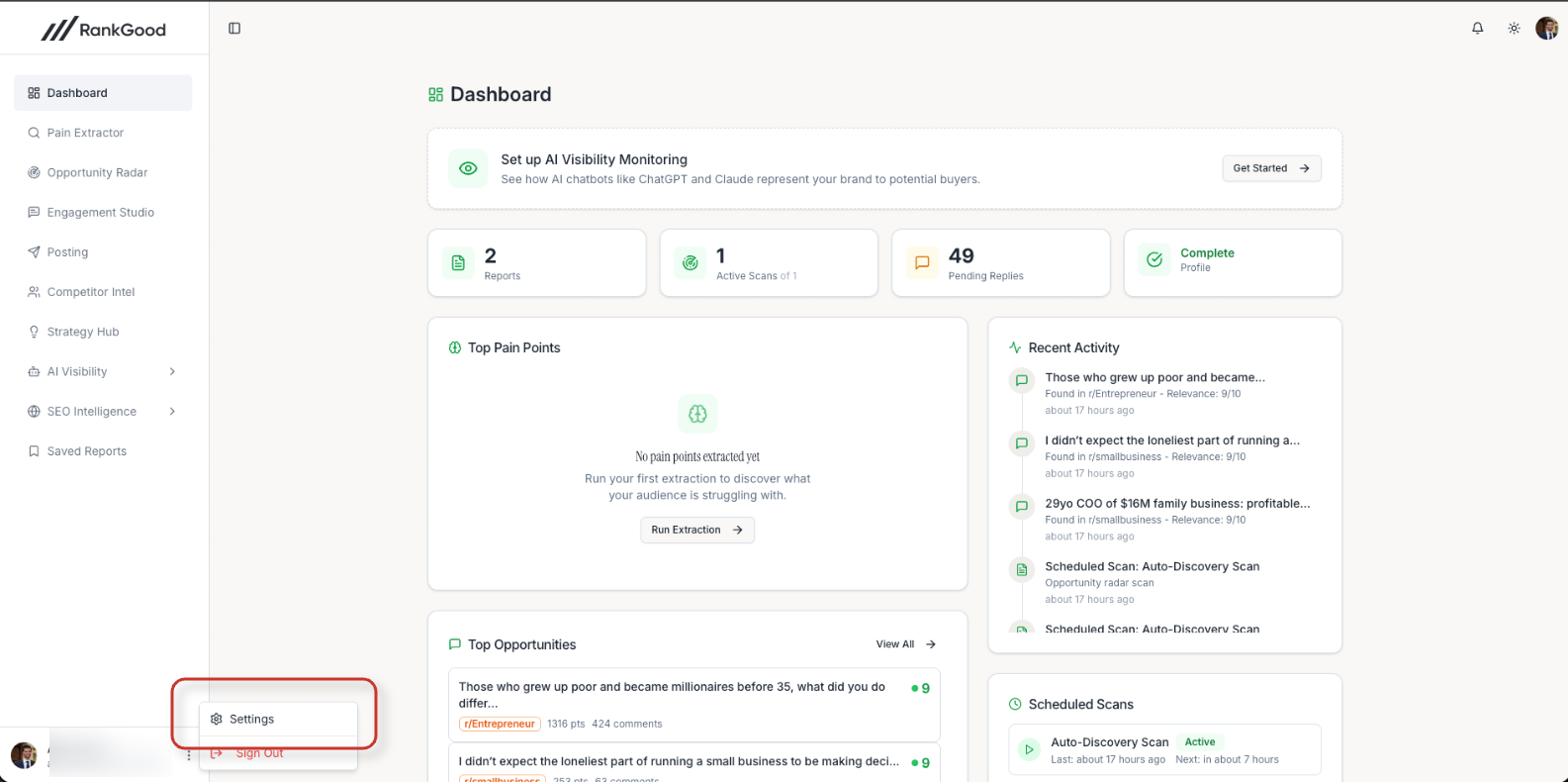
Click Settings in the sidebar navigation. The settings page is organized into tabs.
Profile Settings
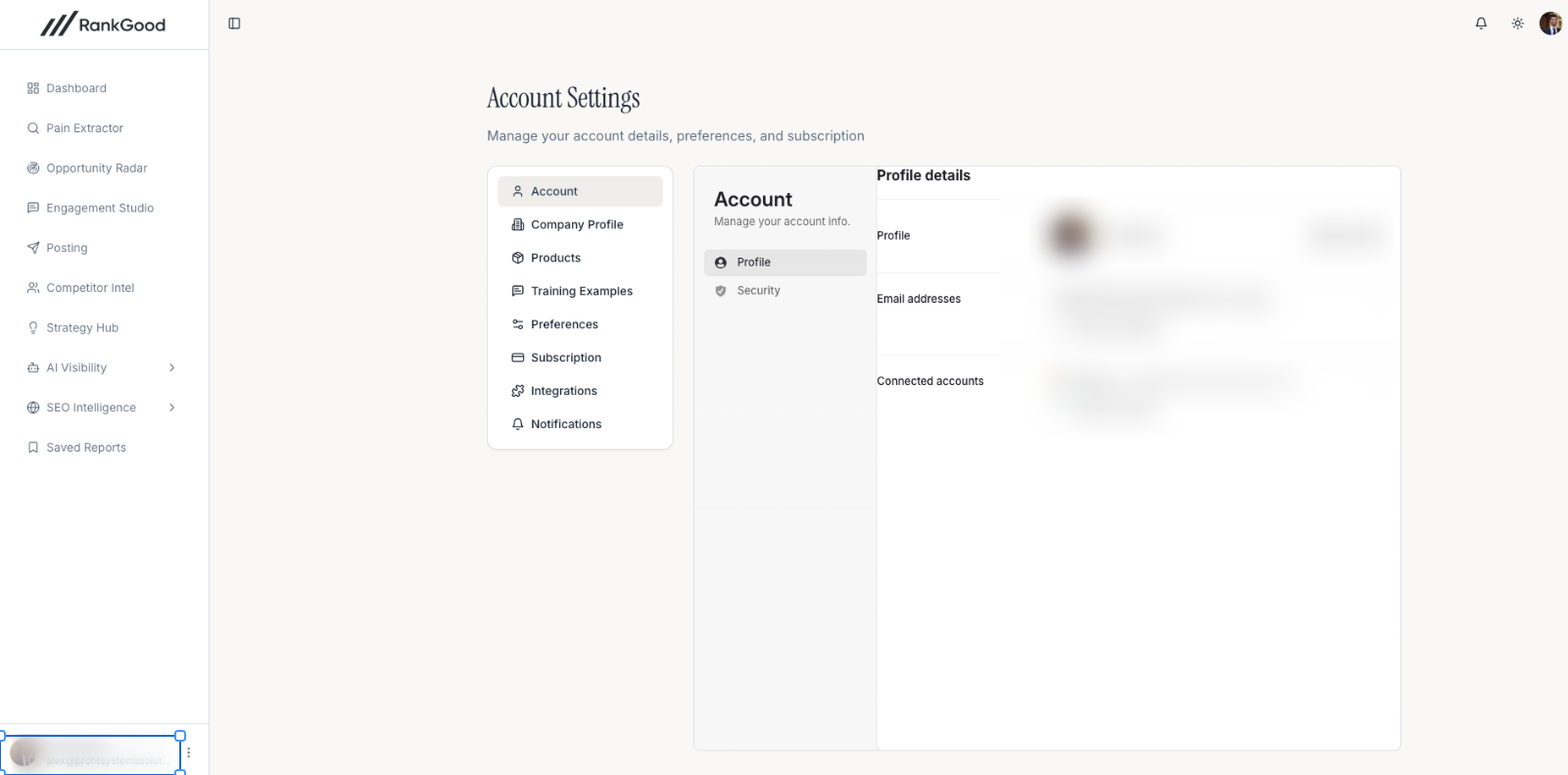
Personal Information
Update your basic profile information:
Display name
Email address (managed through Clerk authentication)
Profile picture
Password & Security
Your authentication is managed through Clerk. To change your password or manage login methods:
Click Manage Security to access Clerk's account management.
From there, you can update your password, enable two-factor authentication, or manage connected social accounts.
Products Tab
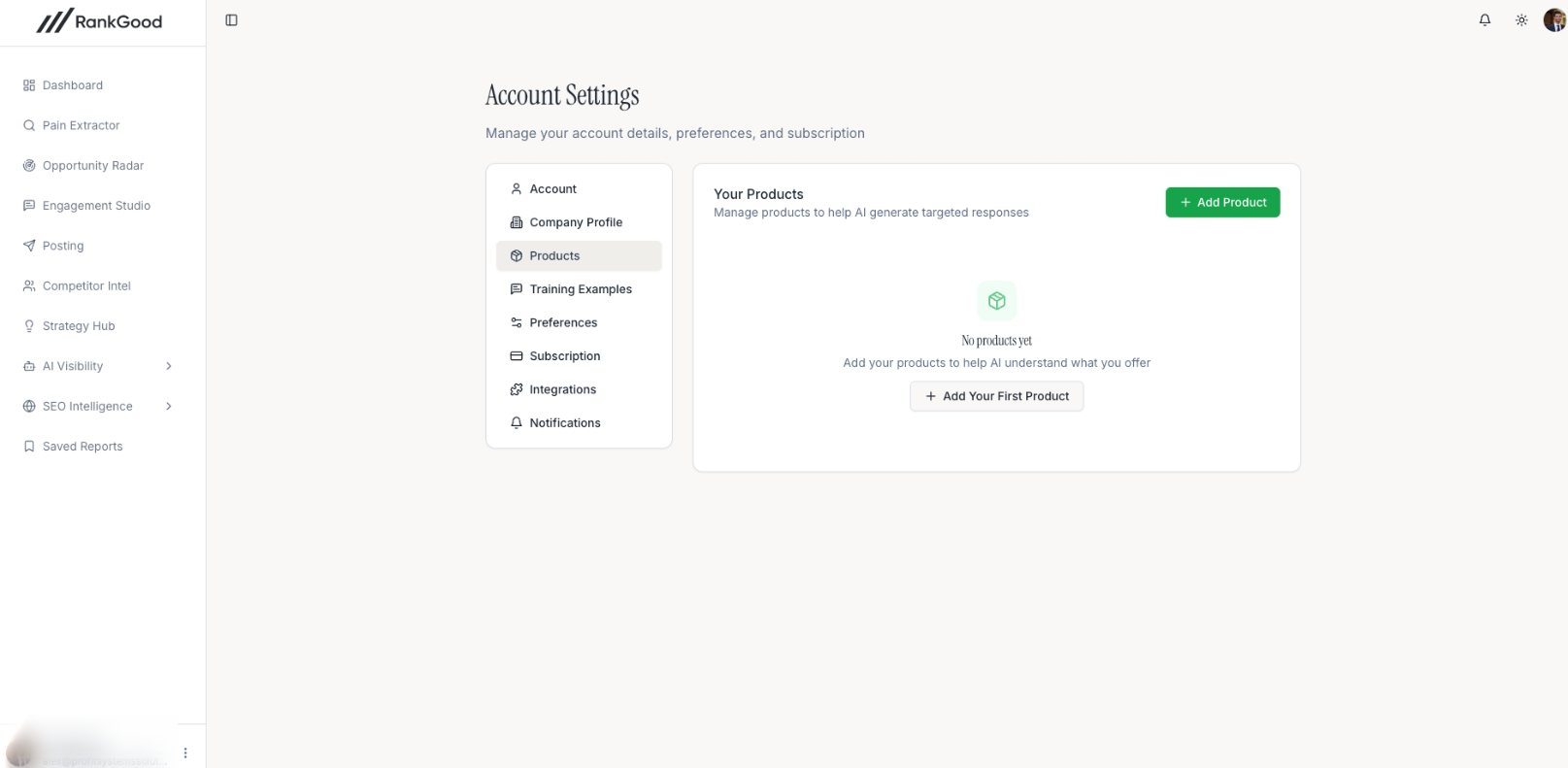
Manage the products (brands/services) you are monitoring and promoting:
View all products — See cards for each configured product
Add a product — Set up a new product via URL analysis, document upload, or manual entry
Edit a product — Click on any product to update its information
Delete a product — Remove a product you no longer need
For detailed instructions, see Setting Up Your First Product.
Subscription Tab
View and manage your subscription details:
Current plan tier and billing cycle
Usage statistics (scans used vs. included)
Wallet balance
Active add-ons
Plan change options
Billing portal access
For detailed instructions, see Managing Your Subscription.
Integrations Tab
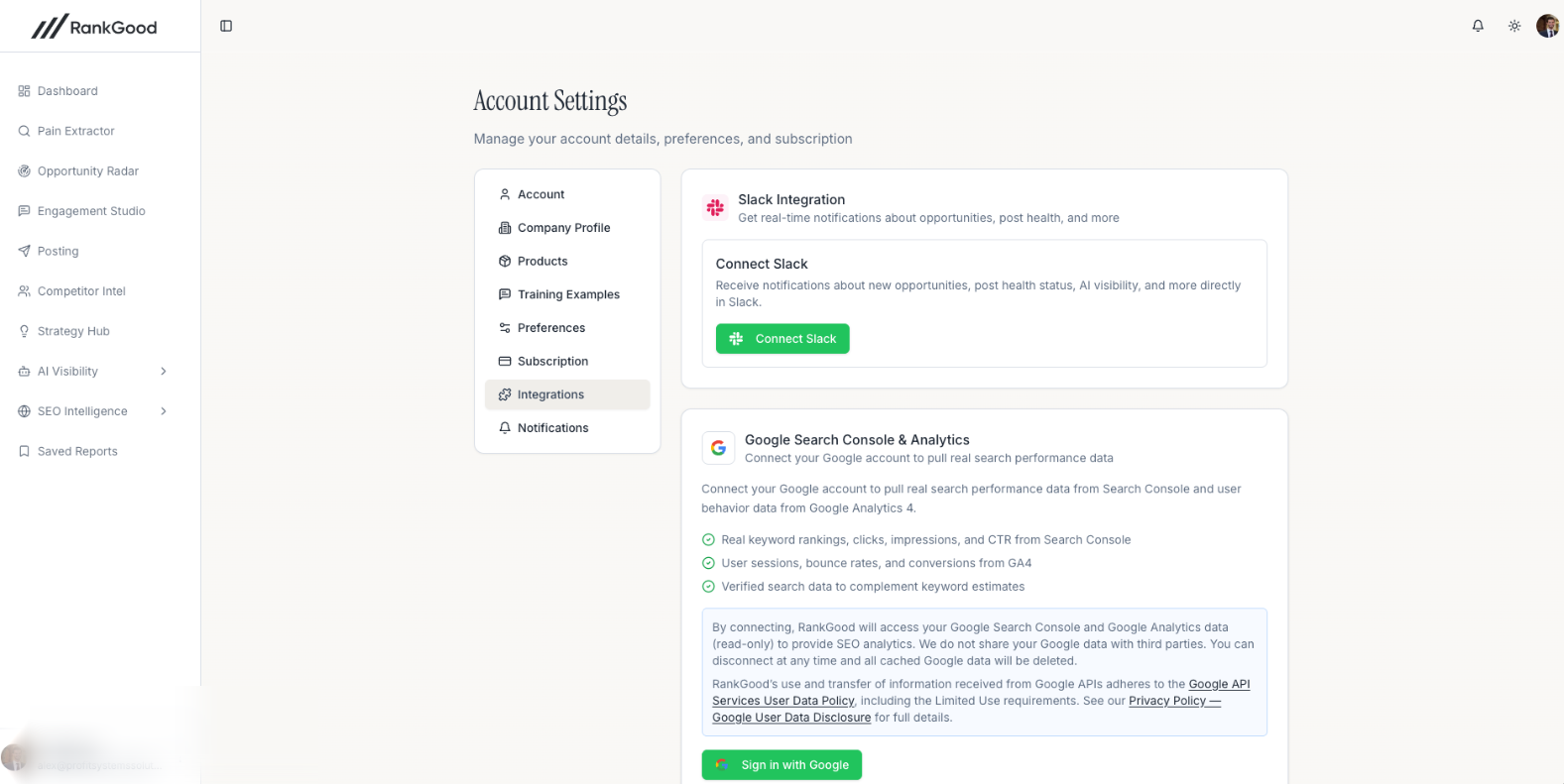
Connect third-party services to enhance your RankGood experience:
Each integration shows its connection status (connected, disconnected) and a button to connect or manage it.
Dark Mode
Toggle dark mode from the theme switcher in the top menu next to your profile image on the right side. Your preference is saved and persists across sessions.
Related Articles:
Still need help? Ask the team